






























Launch offer30% off your first plan with codeEnds Nov 18See pricing
PixloudPixloud

The live wall

Place the QR code on the wall

1 min read · Updated October 4, 2026

On this pageChange its position and size

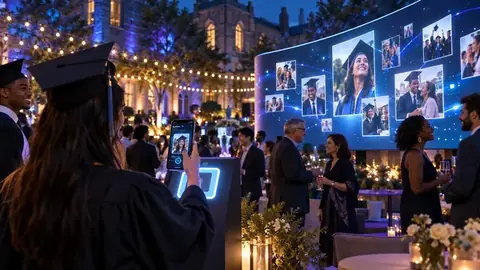
The wall always shows your QR code and short link so guests can join from their seats.

Change its position and size

  1. Open your event and go to Look & feel → QR Code on the Wall.
  2. Position: Auto (recommended), Bottom right, Bottom left, Top right or Top left.
  3. Size: Auto (recommended), Small, Medium or Large.
  4. Click Save QR Settings.
Tip

On big LED walls and projectors, choose Large so people at the back can scan it. On a TV near the tables, Small keeps more room for photos.

Related guides

Still need help?

Real people, usually within a working day, and much faster during live events.

Ready for your next event?

Set it up in minutes. Your first 25 photos are free.

The live wall

Place the QR code on the wall

1 min read · Updated October 4, 2026

On this pageChange its position and size

The wall always shows your QR code and short link so guests can join from their seats.

Change its position and size

  1. Open your event and go to Look & feel → QR Code on the Wall.
  2. Position: Auto (recommended), Bottom right, Bottom left, Top right or Top left.
  3. Size: Auto (recommended), Small, Medium or Large.
  4. Click Save QR Settings.
Tip

On big LED walls and projectors, choose Large so people at the back can scan it. On a TV near the tables, Small keeps more room for photos.

Related guides

Still need help?

Real people, usually within a working day, and much faster during live events.

Ready for your next event?

Set it up in minutes. Your first 25 photos are free.